

This is how to connect an Android Phone or iPhone to your Hosted Exchange Office 365 email account, including those with Multi-Factor Authentication
Android Phone Office 365 Email Setup:
- Find the “Settings” App on your Droid device

- In the settings App, find and click on “Accounts”
- Click “Add Account”
- Choose “Microsoft Exchange ActiveSync”, “Exchange” Office 365″ or if those aren’t available choose “Outlook.com” – Your options will be dependent on the model of your phone
- Enter your email address and password (if you do not know this please contact admin staff – If you have MFA turned on then create an App Password for yourself)
- (optional) To create an app password please login to office.com, click on your initials on the top right, click ‘my account’, choose ‘Security and Privacy’, ‘Additional Security Verification’, and then ‘Create and Manage App Passwords’
- Click “Sign In”
- Click ‘OK’ and ‘Allow’ or “Activate” on any prompts that come up
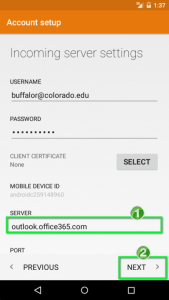
- If the phone doesn’t find your account with just your email address and password, you may have to type in the server address, which is: outlook.office365.com – Leave the domain field empty – your username is your email address
- When it gets to the Account Setup page, un-check sync texts/SMS and click “Next”
- Set the Account Name as Office 365 and click “Done”
- Please scroll down to the How to Remove Old Account from Phone section on this page to remove your old email account

If you have MFA turned on we recommend downloading and using the OUTLOOK APP because it will do the text verification rather than force you to use an App Password
- Open up the Play Store or App Store
- Search for Microsoft Outlook (the app is free)
- Install it
- Open it and select Get Started
- Enter your Office 365 email address and password
iPhone Office 365 Email Setup:
- Find the “Settings” App on your Droid device
- In the settings App, find and click on “Accounts” or “Mail, Contacts, Calendars”
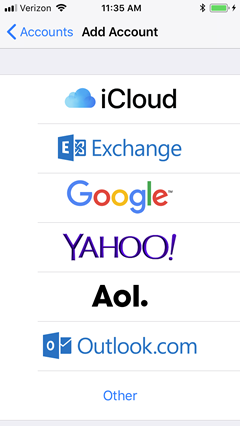
- Click “Add Account”
- Choose “Exchange” , “Microsoft Exchange ActiveSync”, “Office 365” or if those aren’t available choose “Outlook.com” – Your options will be dependent on model of your phone

- Enter your email address and password (if you do not know this please contact admin staff – If you have MFA turned on then create an App Password for yourself)
- (optional) To create an app password please login to office.com, click on your initials on the top right, click ‘my account’, choose ‘Security and Privacy’, ‘Additional Security Verification’, and then ‘Create and Manage App Passwords’
- Click “Sign In”
- Click ‘OK’ and ‘Allow’ on any prompts that come up
- If the phone doesn’t find your account with just your email address and password, you may have to type in the server address, which is: outlook.office365.com – Leave the domain field empty – your username is your email address
- When it gets to the Sync Settings page you can leave everything like it is and click SAVE
- Set the Account Name as Office 365 and click “Done”
- Please scroll down to the How to Remove Old Account from Phone section on this page to remove your old email account

FYI, You can also use the Microsoft Outlook App to sync your Office 365 account to an iPhone or Droid if your phone doesn’t have a built-in Email app, to do this:
- Open up the Play Store or App Store
- Search for Microsoft Outlook (the app is free)
- Install it
- Open it and select Get Started
- Enter your Office 365 email address and password
How to Remove your Old Email Account from a Droid:
- Find the “Settings” App on your Droid device
- In the settings App, find and click on “Accounts”
- Choose your old CJBS account and choose REMOVE
How to Remove an Old Email Account from an iPhone:
- Find and Click the “Settings” App
- Select the “Mail, Contacts, and Calendars” option (if you don’t see that then choose “Accounts and Password”
- Select your old CJBS Account
- Press the red “Delete Account” button
The article was a simple instruction set on ‘How to Connect Android Phone or iPhone to Office 365’
If you need an Office 365 Consultant or are planning an O365 Migration, then look no further than your friends at LME
Contact LME Services and We Will Fix This For You
This fix is part of our full Microsoft 365 & Outlook Troubleshooting Guide.
See the Full Guide